Archive a Course
You can archive a course to help you manage your content in the admin app. If you have large volumes of old, potentially out of date content, this is a great way to give your site a quick tidy up and separate your new and legacy content without having to delete it.
In this article we explain what the archive status is, how you can archive a course, how to access your archived courses, and how to un-archive courses if required.
The 'Archive' Status
The 'Archive' status enables you to both remove an old course from sale and hide it from your everyday interactions with the course building section of your site. This status is the bridge between removing a course from sale, but not going as far as deleting the course in full from your site.
On the Admin site, archiving a course will remove it from your default views when building and
managing your course content. For example, an archived course will not appear by default in your courses list, when building a new course you cannot import a module from an archived course, nor can you manually enrol a learner to an archived course. The course would need to be moved to draft or published first.
On the Learner site, archiving the course will remove it from sale for any future enrollees - they will no longer see it in the Catalogue. Previous enrollees will still be able to view the course content and complete the course if they had enrolled before it was archived.
Note: If you do want to remove a Learner's access to a course and its Learning Resources altogether you can either disable each Learner's access to the course from the Learner's Course Enrolments page, or you can delete the course altogether - but this action is irreversible.
How to Archive a Course
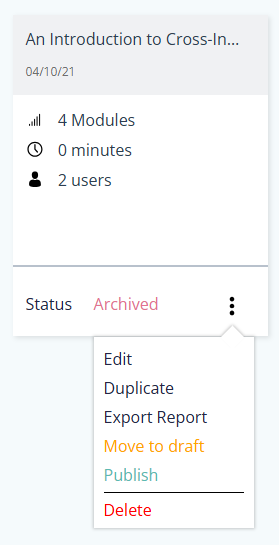
To archive a course, simply click the three dots menu on the course card and select 'Archive'. The new course status will update instantly.

How to Access Archived Content
Go to 'Content' > 'All Courses'.
Select 'Archived' using the 'Filter' as shown below.
You can un-select 'Live' and 'Draft' courses if you only want to see your archived courses.

How to Publish Archived Courses
Should you need to un-archive a course at any point in the future, you will first need to select the 'Archived' courses from the filter, and then open the three dots menu on the relevant course card and select 'Move to Draft' (to make any further edits), or 'Publish' (if you want to re-publish the course).
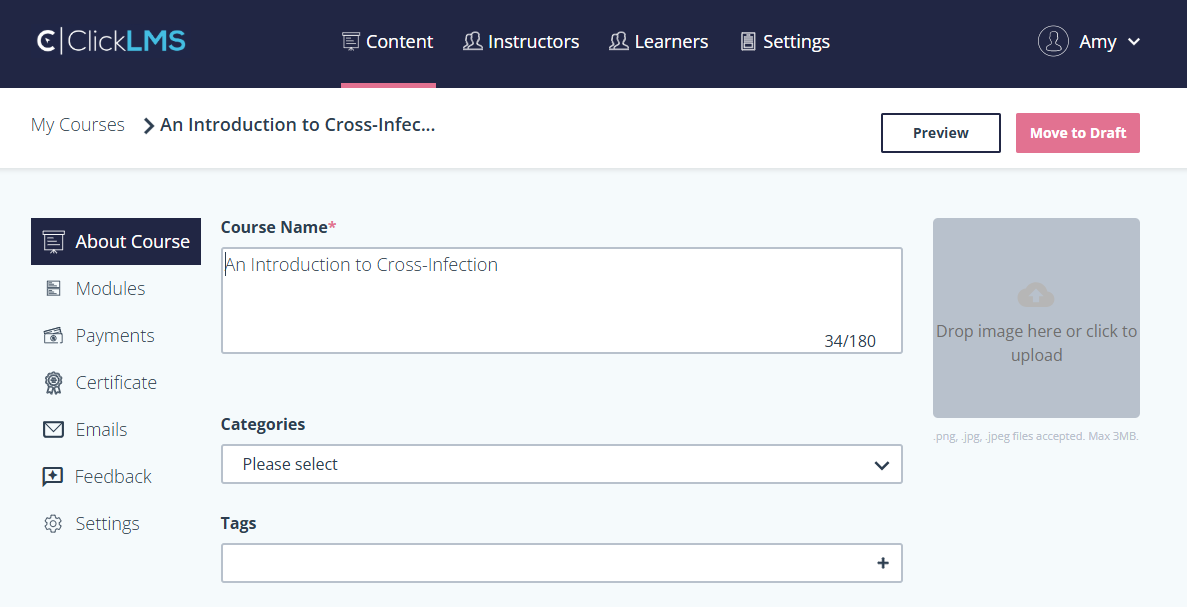
Alternatively you can open up the course and click 'Move to Draft' at the top of the page.